Pay periods that follow your income
A period starts on a regular income date and runs until the day before the next one. Pay on the 15th and the last day, and a month-end payday on Oct 31 gives you Oct 31 to Nov 14.
Windows desktop app · Your data stays on your PC
Budget Assistant plans your money from one payday to the next. See what is safe to spend, tick off bills as you pay them, plan your spending and track your goals, all from a single file on your computer.
Version 1.0.0 · 157 MB · Windows 10 or 11, 64-bit · No cloud account needed
Built around your payday
Most budgets are organised by calendar month. Yours is paid on the 15th and the last day, so Budget Assistant works the way your money actually moves.
A period starts on a regular income date and runs until the day before the next one. Pay on the 15th and the last day, and a month-end payday on Oct 31 gives you Oct 31 to Nov 14.
Income, minus bills, goal set-asides, what you have already spent and what you have planned. One number you can trust before you buy something.
Every bill due this payday in one list. Tick it when you pay, and change the amount when it varies. A utility bill that came in higher shows as "over", and next month still expects the usual amount.
Pick from expenses you have recorded before, adjust the amounts, and add one-off payments that will not repeat. Planned spending comes off safe to spend straight away.
Insurance, tuition, a trip. Add the date and the estimate, then turn it into a sinking fund that saves a little every payday so the bill never surprises you.
Set a target and a deadline. See how much to set aside each payday, whether you are on track, and when you would finish at your current pace.
Look 3, 6 or 12 pay periods ahead. A period that will fall short is marked well before you get there. Irregular income counts once it arrives and is never assumed.
Put part of each payday aside for a bill that comes later, then let the jar pay it. A 4,000 bill becomes 2,000 on the 15th and 2,000 on the last day. Select any pay period to see exactly what is due in it.
Set the least you want left to spend. Before a goal would take you below it, the app asks, and offers a smaller target or a later date. If you go ahead, a reminder stays on every page until you recover.
Peso by default, with any other currency you hold. Every entry keeps the exchange rate you used, so changing a rate later never rewrites your history.
A look inside
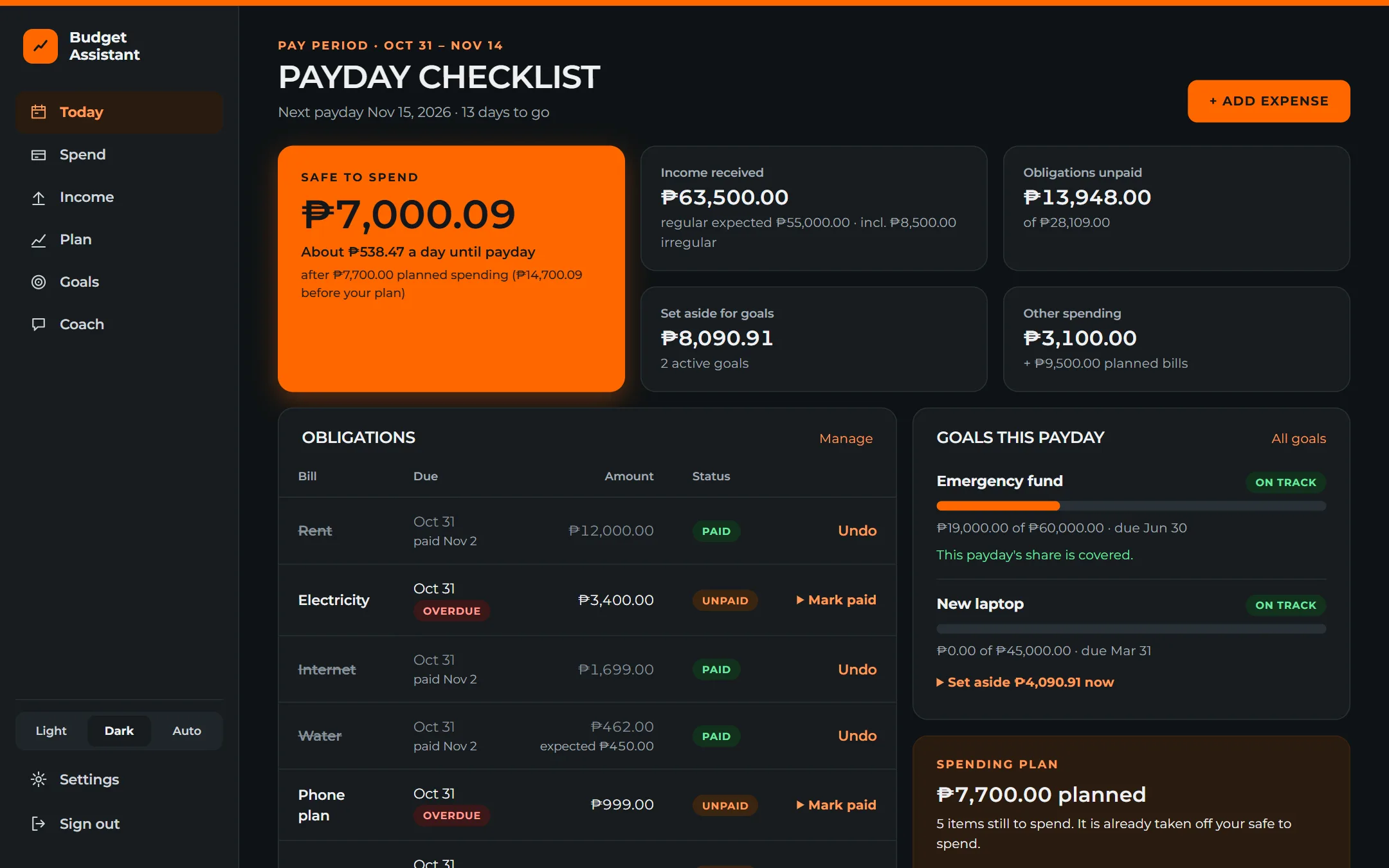
Sidebar navigation, wide tables and a light or dark theme. These are real screens with made-up sample data.
Today. Your payday checklist: what is safe to spend, which bills are paid, how each goal is doing and what your plan has already taken.
How it works
Download the installer, run it, and create your local password on first launch. Turn on two-step sign-in with any authenticator app if you like.
Enter your regular income with its dates (for example 15,L for the 15th and month-end), then your recurring bills. Your pay periods appear automatically.
Tick off bills as you pay them, record what you spend, plan the rest, and check the number that matters: what is safe to spend until the next payday.
Try the maths
This is the same calculation the app does for every pay period. Change the figures and see what is safe to spend. Nothing you type leaves this page.
Optional AI coach
Ask whether a goal is realistic, which pay periods look tight, or where the money is going. The coach uses figures the app has already calculated, so it never guesses the maths.
Your data
Budget Assistant is built for one person on one PC. That keeps it simple, fast and private, and it means a few things you should know about up front.
Download
Download Budget Assistant for Windows, run the installer, and create your local password.
Download Budget Assistant 1.0.0 for Windowsd261eb152ad4dfd96857b89156f0c87f4e8928e8d80b68cea83572415868248c
Open PowerShell in the folder you downloaded to and run:
Get-FileHash .\BudgetAssistant-Setup-1.0.0.exe -Algorithm SHA256
The value it prints should match the SHA-256 above exactly. If it does not, do not run the file.
Windows may show a SmartScreen warning because the installer is not code-signed yet. Check the SHA-256 above against your download before running it.
Questions
In a single database file on your PC, in your Windows user folder. Daily backups sit next to it. Nothing is uploaded, and the app works with no internet connection. Only the optional AI coach and its model list need the internet.
Only when you ask it a question, and only a summary: totals, category names, and the names you gave your goals and bills. It never receives account numbers or passwords. Free AI models may log prompts, so keep sensitive details out of names and notes. You can turn the coach off in Settings.
No. It can propose a goal, which waits for you to approve or dismiss it. Every other part of your budget is read-only to it, and it uses figures the app calculated rather than doing the maths itself.
Your expected regular income and any irregular income you have received, minus the bills due this pay period, goal set-asides, what you have already spent and the spending you have planned but not yet spent. Regular income is assumed to arrive as expected until you record it.
Yes, that is exactly what it is built for. Enter your income as 15,L (L means the last day of the month) and your pay periods start on the 15th and on the last day, including shorter months like February.
Any. Peso is the default, and you can add others and enter the exchange rate yourself. Each transaction keeps the rate you used, so changing a rate later does not change past records.
The installer is not code-signed yet, so SmartScreen does not recognise it. Compare the SHA-256 shown on this page with your download before running it.
Not yet. It is a single-user Windows app with no sync. You can move to a new PC by copying your data file and its keys folder, and Settings shows you where they are.